Frequently Asked Question
Purpose
Use this article to learn how to add a video from your computer to a Microsoft PowerPoint presentation.
Adding a video can help you include recorded presentations, class materials, demonstrations, or other media directly in your slideshow.
Before you begin
You will need:
- Access to Microsoft PowerPoint
- A PowerPoint presentation where you want to add the video
- A video file saved on your computer
Quick steps
1. Click the Insert tab.
2. Click Video.
3. Choose Video on My PC.
4. Select the video file from your computer.
5. Click Insert.
Visual walkthrough
Step 1: Click the Insert tab

In the top left area of PowerPoint, click the Insert tab.
Step 2: Click Video
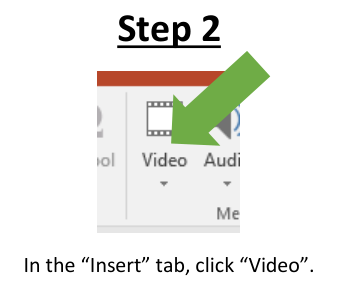
In the Insert tab, click Video.
Step 3: Choose Video on My PC

In the Video menu, choose where the video should come from.
To add a video saved on your computer, click Video on My PC.
Step 4: Select the video file
A file window should open.
Find and select the video file you want to add to your PowerPoint presentation.
Then click Insert.

Expected result
The selected video should be added to your PowerPoint slide.
You can then move or resize the video on the slide as needed.
If this does not work
Make sure the video file is saved on your computer and that you know where it is located.
Try clicking the Insert tab again, then choose Video and Video on My PC.
Need More Help?
If this walkthrough does not resolve the issue, please contact Lake Land College IT Support for assistance.
Submit a ticket: https://helpdesk.lakelandcollege.edu/
Call: 217-234-5261
Search terms:
PowerPoint video
add video PowerPoint
insert video in PowerPoint
add a video to PowerPoint
PowerPoint media
Video on My PC
add video from computer PowerPoint
insert video from my computer
PowerPoint insert media
how to put a video in PowerPoint
PowerPoint add movie
PowerPoint upload video